If your iPhone is stuck on the Apple logo or the Apple logo and progress bar, you can often fix it at home. The usual path is force restart, then recovery mode to update or restore your iPhone with Finder or iTunes. If that fails, DFU mode can reload firmware. After the fix, restore your iPhone from a backup. Work through the steps below before you book iPhone repair or contact Fix My Mobile.

Why your iPhone gets stuck on the Apple logo
A stalled boot usually means iOS did not finish loading. A recent iOS update, a failed restore, or corrupt data can stop startup at the Apple logo.
When the Apple logo appears but the home screen never loads, software is most often the cause. Rarely, hardware faults or low battery health trigger a loop. Start with a force restart to clear temporary states, then use recovery mode to reinstall iOS without erasing data where possible.
Common triggers and quick checks
- Interrupted iOS update or patch during reboot
- Mismatched iOS version when restoring from a previous device
- Recently added accessories via USB or damaged cables
- Low storage, leading to a boot loop after an update
Example: An iPhone 13 freezes on the Apple logo after an over-the-air update. A recovery mode update completes the install and the phone boots normally.

Try a force restart by model
A force restart can clear a freeze without erasing data. Use the correct button sequence for your iPhone model.
How to force restart
- iPhone 8 and later, including iPhone X, 11, 12, 13, 14, 15: Press and release Volume Up, press and release Volume Down, then press and hold the Side button. Keep holding the Side button until you see the Apple logo.
- iPhone 7 and iPhone 7 Plus: Press and hold the Side button and the Volume Down button together. Release when the Apple logo appears.
- iPhone 6s, iPhone SE (1st gen), iPod touch with Home button: Press and hold the Home button and the Power button together until the Apple logo appears.
Decision points
- If the iPhone restarts to the home screen, you are done.
- If it returns to the Apple logo or stays stuck on the Apple logo and progress bar, move to recovery mode.
Example: An iPhone 7 Plus stuck on startup responds to the Side + Volume Down hold and boots. If it had failed, recovery mode would be next.
Put the iPhone in recovery mode and choose update or restore
Recovery mode lets iTunes or Finder reinstall iOS. Choose Update first to keep data, or Restore if update fails or the device remains stuck.

Steps to enter recovery mode
- Connect your iPhone to a computer with a USB cable. Use Finder on a Mac with macOS Catalina 10.15 or later, or iTunes on Windows or macOS Mojave.
- Perform the model-specific button sequence and keep holding until you see the recovery mode screen: a cable pointing to a computer.
- iPhone 8 and later: Press and release Volume Up, press and release Volume Down, then hold the Side button until recovery mode appears.
- iPhone 7 and 7 Plus: Hold Side + Volume Down until recovery mode appears.
- iPhone 6s or earlier with Home button: Hold Home + Power until recovery mode appears.
- On Finder or iTunes, choose Update when prompted to update or restore. This downloads the correct version of iOS and attempts to fix the installation without erasing your data. If Update fails, repeat and choose Restore.
Notes
- Keep the iPhone connected and keep holding the buttons until you see the recovery mode screen.
- If the download takes more than 15 minutes and the iPhone exits recovery, let it finish, then put the device into recovery mode again.
Small glossary
- Update: Reinstalls iOS; aims to keep data.
- Restore: Erases and reinstalls iOS; you will later restore your iPhone from a backup.
Quick answers
- Finder or iTunes? Use Finder on macOS Catalina and later, iTunes on Windows or macOS Mojave.
- Will Update erase data? Update should not erase data. Restore will erase data.
- Version of iTunes needed? Use the latest version to avoid errors during the firmware update.
Use DFU mode if recovery mode fails
DFU mode reloads the device firmware and iOS from scratch. Use it only if recovery mode does not fix the issue, because DFU will erase data.

DFU overview
- DFU bypasses the normal boot loader to allow a full device firmware update.
- This mode is useful for persistent boot loops, frozen Apple logo screens, or when recovery mode returns errors.
How to enter DFU mode
(timing-sensitive; try twice if needed)
- iPhone 8 and later:
- Connect your iPhone to the computer.
- Quickly press and release Volume Up, then Volume Down.
- Press and hold the Side button until the screen turns black.
- Immediately hold Side + Volume Down for 5 seconds, then release Side while keeping Volume Down pressed for 10 more seconds.
- The screen stays black, and Finder or iTunes detects a device in recovery.
- iPhone 7 and 7 Plus: Hold Side + Volume Down for 8 seconds, then release Side while holding Volume Down until detected.
- iPhone 6s or earlier with Home button: Hold Power + Home for 8 seconds, then release Power while holding Home until detected.
Then in Finder or iTunes
- Choose Restore to reinstall iOS and firmware. Afterward, restore your iPhone from a backup.
Quick answers
- Is DFU different from recovery mode? Yes. DFU is deeper and reloads firmware and iOS.
- Will DFU cause data loss? Yes. You will need a backup to get your data back.
- How long should it take? Downloads vary by internet speed. The on-device restore usually completes within an hour once files are downloaded.
Restore your iPhone from a backup after the fix
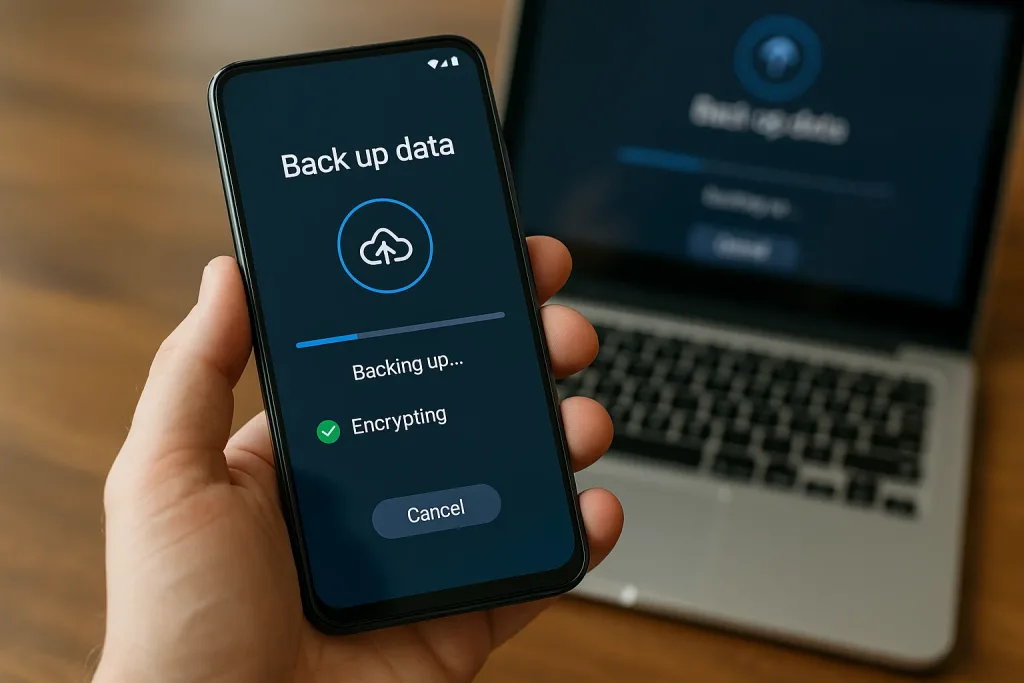
After Update or Restore, set up your iPhone and bring your data back from iCloud or a computer backup.
Restore paths
- iCloud backup: On the setup screen, choose Restore from iCloud Backup, sign in, and pick the most recent backup.
- Finder or iTunes backup: Choose Restore from Mac or PC, connect with USB, and select your encrypted backup.
- From a previous device: During setup, you can transfer data directly if both devices are available and working.
What to verify after restore
- Messages, Photos, and the home screen layout appear as expected
- Health and Keychain items return when using encrypted backups
- Apps finish downloading before you judge performance
Example: An iPhone 12 restored through DFU is then rebuilt from an encrypted Finder backup, returning passwords and Health data.
How to avoid data loss if your iPhone gets stuck again
Keeping regular backups and enough free space reduces the risk of a boot issue becoming data loss.

Simple habits
- Enable iCloud Backup and plug in overnight on Wi-Fi
- Keep at least 5–10 GB free before major iOS updates
- Update iOS and apps regularly to the latest stable patch
- Use encrypted computer backups before big trips or repairs
Recovery checklist to save time next time
- Latest version of iTunes or macOS
- Known-good USB cable and port
- Your Apple ID and passcode handy

When this may not be the right fit
Software steps may not help if the iPhone will not power on, the screen stays black with no Apple logo, or the device shows repeated hardware errors. Liquid damage, a failing electric battery, or a damaged interface component can mimic a frozen Apple logo.
If buttons are broken or you cannot complete sequences, skip to professional iPhone repair. Do not keep cycling DFU attempts if Finder or iTunes cannot detect the device at all.

How to judge if you need repair now or later
Act now if the iPhone gets stuck on the Apple logo repeatedly, recovery mode fails, or DFU returns errors. You can wait briefly if a force restart resolves it and the phone behaves normally afterward.
Decision guide
- Boot loop or frozen on the Apple logo after Update: Attempt recovery mode Update now.
- Recovery errors or no detection by computer: Book repair.
- Force restart fixes it once: Back up immediately and watch for repeats.
Example: An iPhone SE reboots to the home screen after a force restart. The owner backs up, updates iOS, and monitors before deciding on service.
Need more help and what to tell professional iPhone repairer
If the iPhone is still stuck on the Apple logo, contact Fix My Mobile with clear details.
Useful info to share
- iPhone model and iOS version history if known
- What you tried: force restart, recovery mode, DFU mode
- Messages from Finder or iTunes, including error codes
- Whether you have a recent backup and any data loss concerns
Next steps
- Prepare for possible service by backing up any accessible data
- Bring your cable and note any third-party accessories connected when the issue began
- Ask whether update or restore will be attempted in store before hardware repair
Frequently Asked Questions
Still stuck on the Apple logo?
Try recovery mode Update first, then DFU Restore if needed, and finally restore your iPhone from a backup. If nothing works, book iPhone repair with Fix My Mobile.